How to use Paper Desk
Make a test or exam paper step by step: start from a template, add your questions, set the layout, then print or download it. Everything happens in your browser.
پیپر ڈیسک پر پرچہ بنانے کا مکمل طریقہ، تصویروں کے ساتھ۔
1Start a paper
Open the editor and pick a starting structure. Every heading, section and setting can be changed later.
نیا پرچہ شروع کرنے کے لیے کوئی سانچہ منتخب کریں، بعد میں ہر چیز بدلی جا سکتی ہے۔
- Press "Create a paper" at the top of any page.
- Pick a template: Board style, Class test, College paper, University mid / final, Worksheet, or Blank paper.
- The paper opens with empty questions in that structure, and the preview on the right shows the real pages.
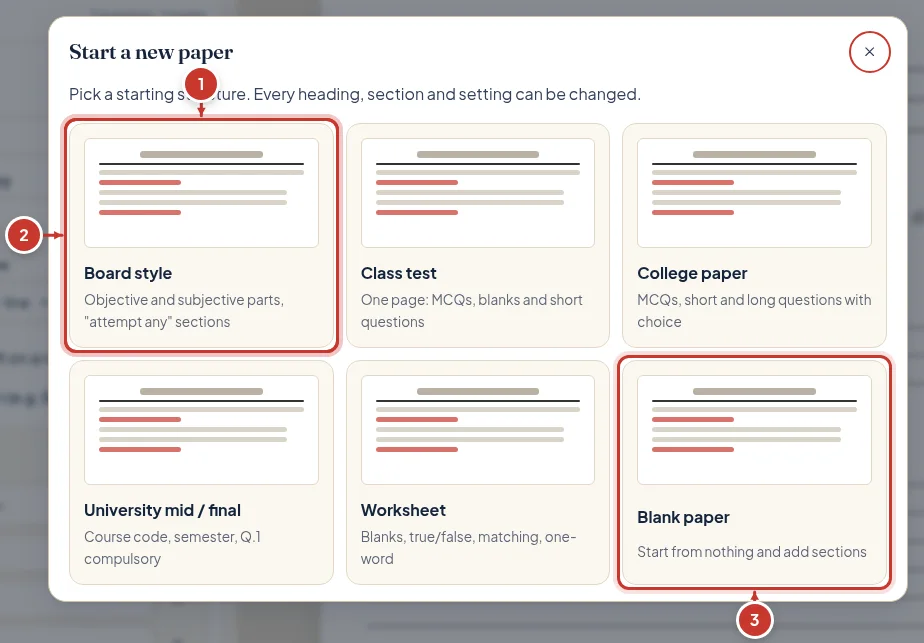
- Choose a starting structure
- Board style: objective and subjective parts
- Start from nothing
2Institute name, logo and student details
The Paper tab holds everything printed at the top of the first page.
ادارے کا نام، لوگو، مضمون، جماعت، وقت اور طالب علم کے نام و رول نمبر کی جگہ یہاں سے بنائیں۔
- Open the "Paper" tab. Type the institute name, a second line if you want one (campus or address), and add a logo.
- Fill in the paper title, subject, class and time. Total marks add up by themselves from the questions.
- Under "Student details", keep or remove Name, Roll No., Class and Section, or add Department, Semester, Course Code and others. Each prints as a label with a line for the student.
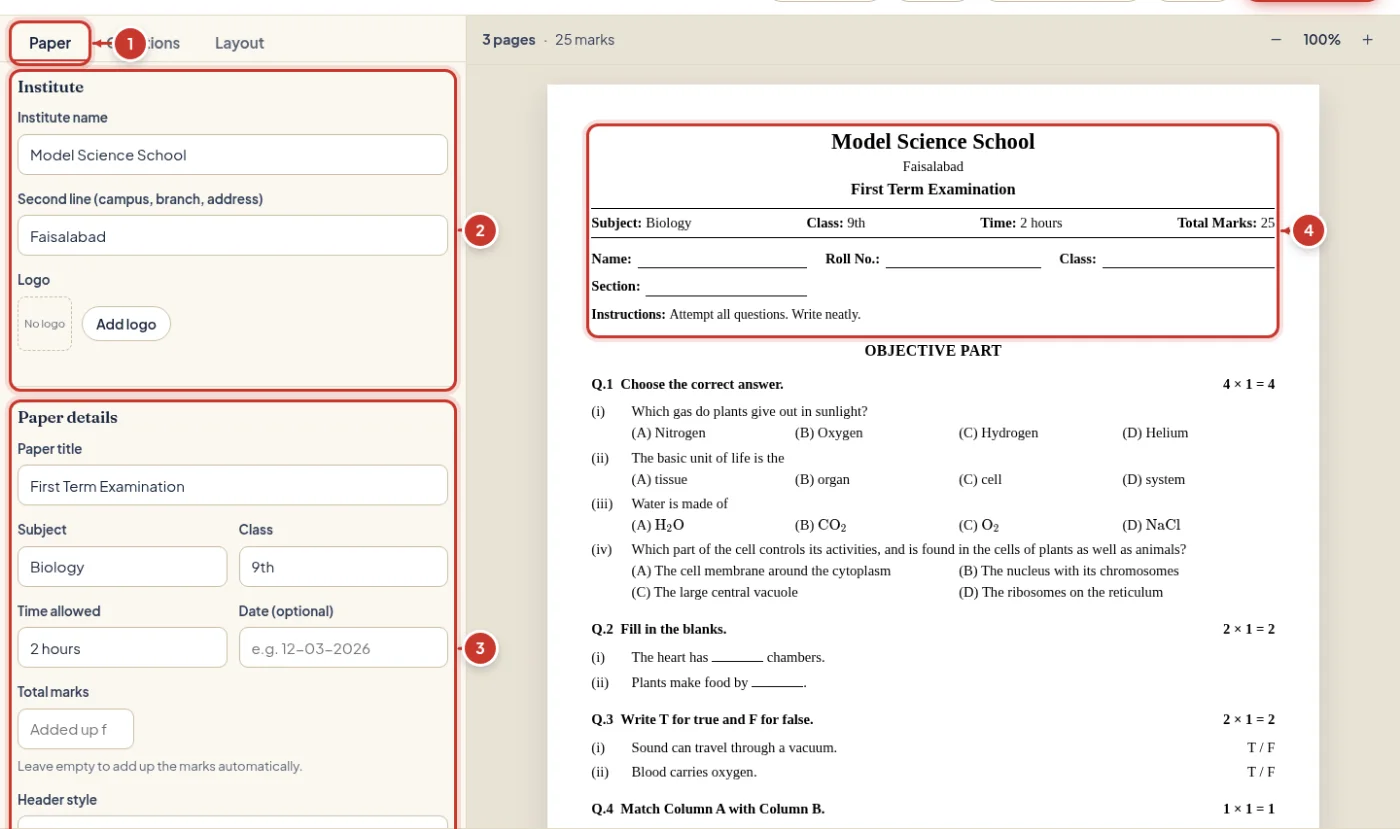
- The Paper tab
- Institute name, second line and logo
- Paper title, subject, class and time
- How the header prints
3Sections and questions
A paper is made of sections (Q.1, Q.2, …). Each section has a type, and holds any number of questions.
ہر قسم کا حصہ بنائیں: معروضی، خالی جگہ، درست غلط، کالم ملائیں، مختصر اور تفصیلی سوالات۔
- Open the "Questions" tab. Each section shows its heading, marks for each question and its total.
- Press a type under "Add a section": MCQs, Fill in the blanks, True / False, Match the columns, One-word answers, Short or Long questions, Comprehension, Translation, Essay / letter, Picture / diagram, Numerical problems, Rearrange / correct, or a Note.
- Press "Add …" under a section for one more question. Ctrl + Enter in a question also adds the next one.
- Long questions take parts (a), (b), (c), each with its own marks and lines.
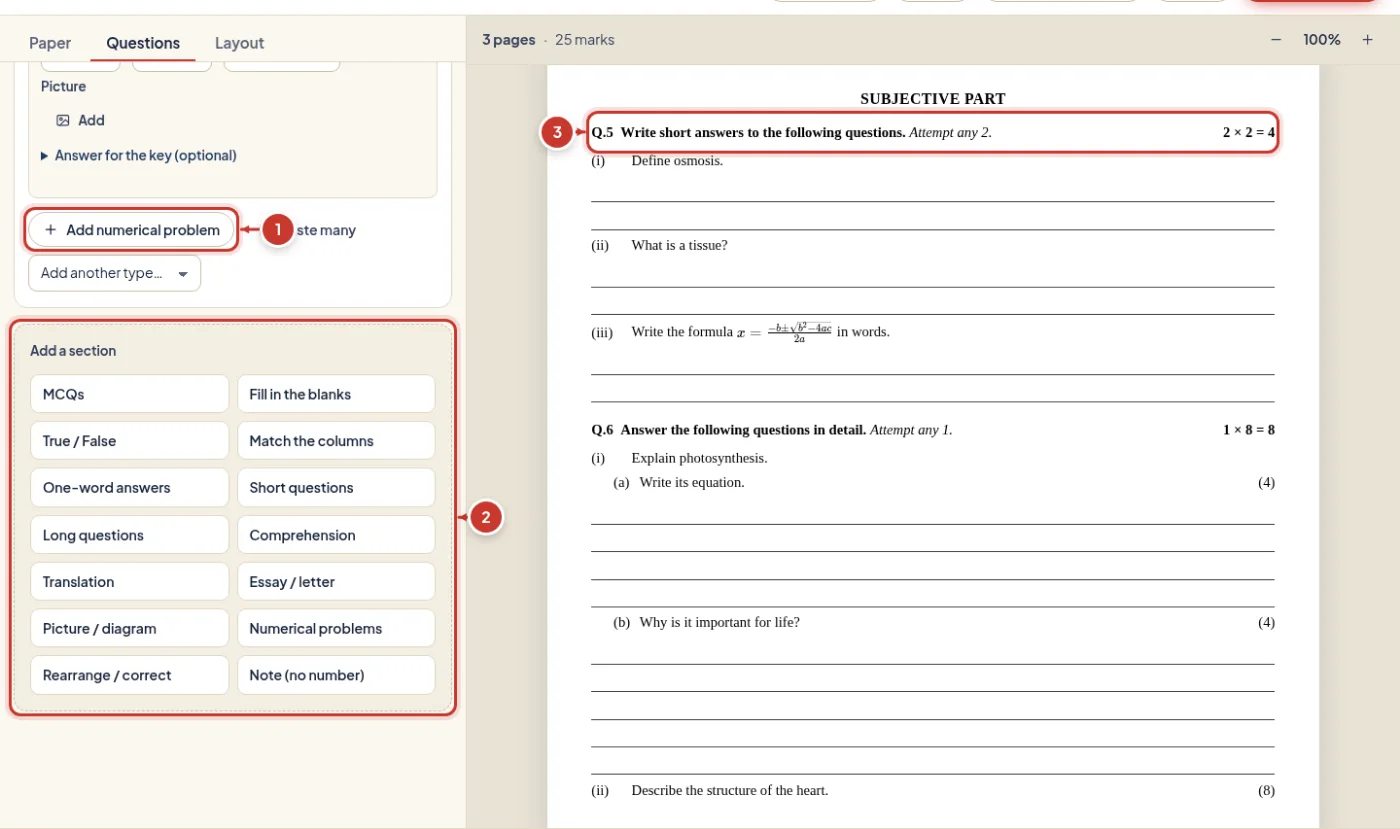
- Add one more question to a section
- Add a new section of any type
- The section in the paper, with its marks
4Write MCQs and mark the answer
An MCQ has a question box and four option boxes. You only type or paste.
سوال لکھیں، چاروں جوابات لکھیں اور درست جواب پر نشان لگائیں تاکہ جوابات کا صفحہ خود بن جائے۔
- Type the question, then each option. Option boxes can be added or removed.
- Click the circle beside the correct option. It is used only for the answer key and the OMR key; the paper itself never shows it.
- In the preview, options sit four on a line when they are short, two on a line when longer, or one under the other.
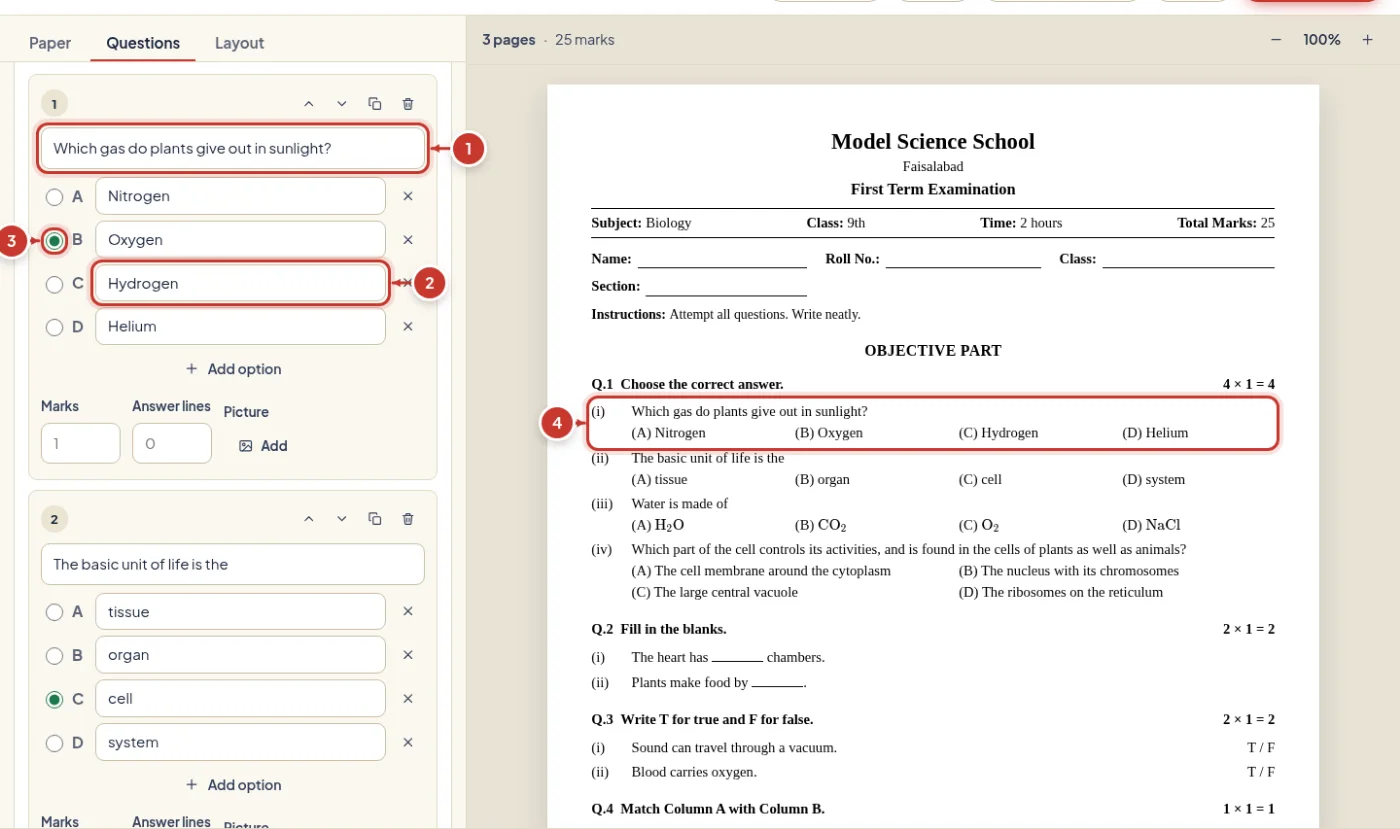
- The question
- The options
- The correct option, for the key
- How it prints
5Paste many questions at once
Questions you already have in Word, Google Docs or a message can go in all at once.
بہت سے سوالات ایک ساتھ پیسٹ کریں۔ اختیارات (الف) (ب) (ج) (د) بھی پہچانے جاتے ہیں۔
- Press "Paste many" under a section.
- Paste a numbered list. MCQ options can be (a) (b) (c) (d), A. B. C. D., or (الف) (ب) (ج) (د), on one line or one per line. A line such as "Answer: b" fills the answer key.
- Check the list of questions found, then press "Add questions".
- For a paper in both languages there are two boxes; questions are matched by their order.
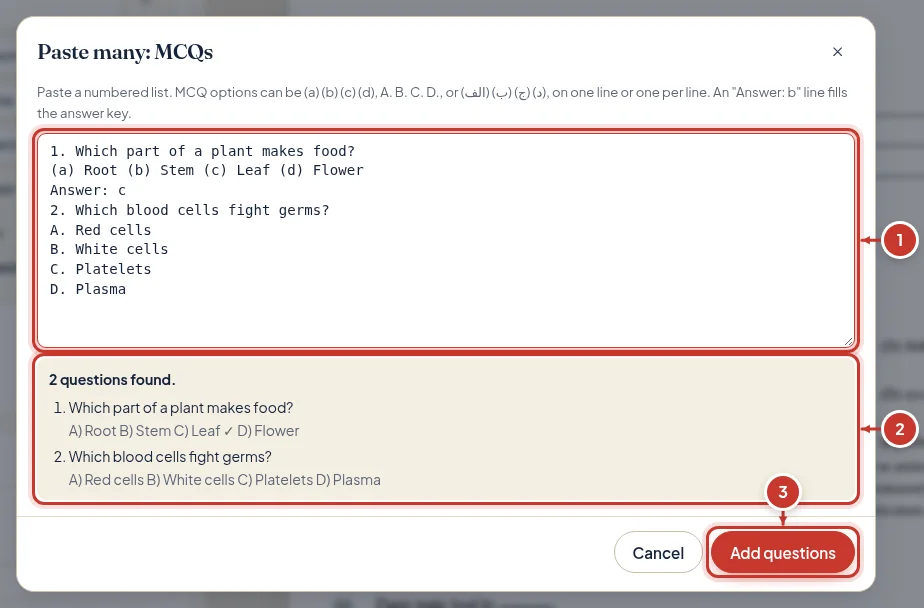
- Paste your numbered list
- What was found
- Add them to the section
6Urdu and bilingual papers
Choose the paper's language on the Paper tab: English, اردو, or Both.
اردو، انگریزی یا دونوں زبانوں میں پرچہ بنائیں۔ اردو نستعلیق میں چھپتی ہے۔
- With "Both", every box has an English and an Urdu field, and the paper shows them side by side or one under the other.
- Urdu prints in Nastaliq; a Naskh font is on the Layout tab.
- Paste Urdu as Unicode text. Text copied from InPage without its Unicode option shows a warning under the box, because it would print as wrong letters.
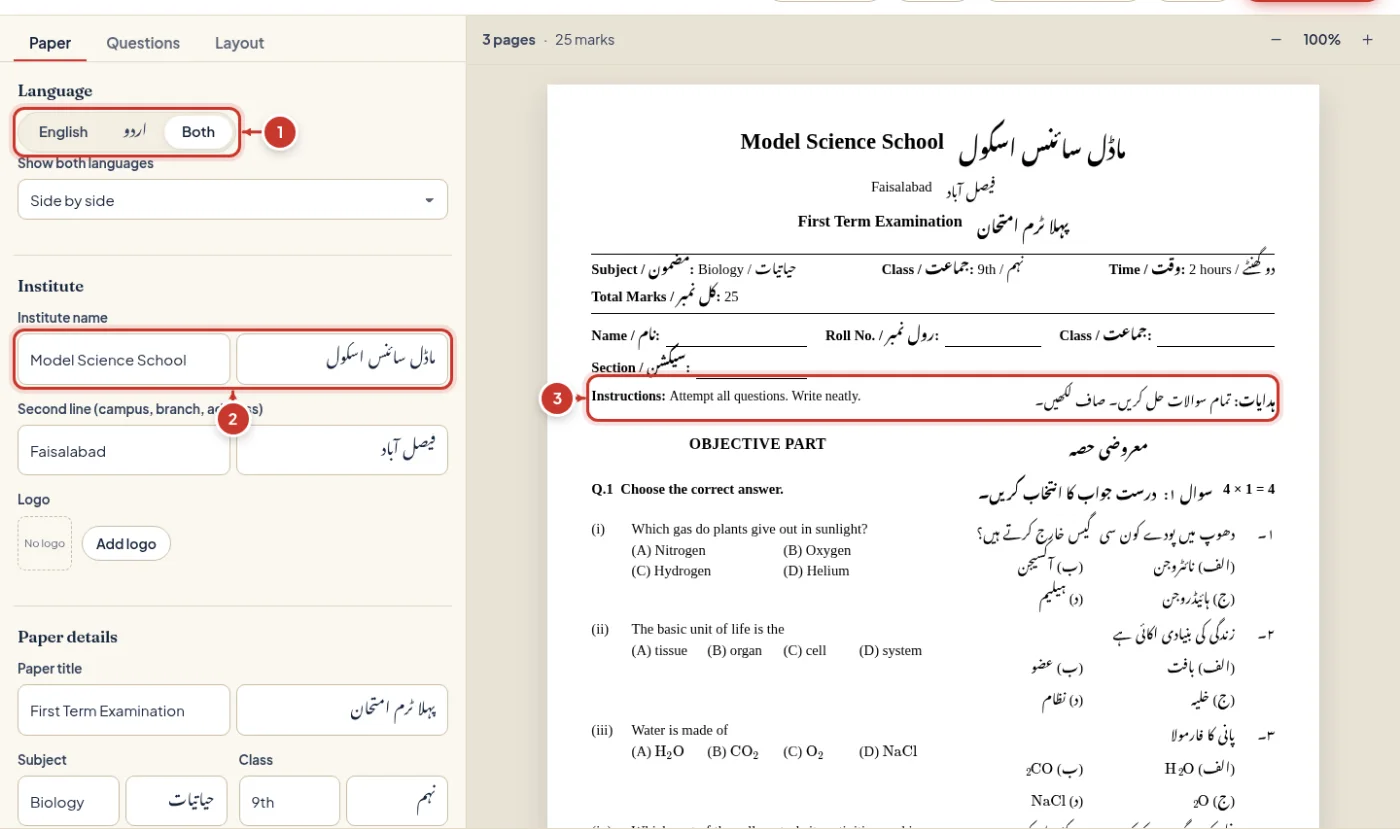
- Paper language
- English and Urdu boxes
- Both languages, side by side
7Formulas, chemistry and pictures
Maths, physics and chemistry papers can carry real formulas, and any question can carry a picture.
ریاضی اور کیمیا کے فارمولے اور سوال کے ساتھ تصویر بھی لگائی جا سکتی ہے۔
- Click in a box and press Σ on the small toolbar. Pick a common formula (fraction, root, power, integral, matrix, chemical equation…) or type it, and press "Insert".
- You can also type a formula between dollar signs, such as $x^2$ or $\ce{H2O}$.
- The same toolbar has bold, italic, underline, H₂O-style subscript and x²-style superscript.
- Press "Add" under Picture, or paste a picture into the question box.
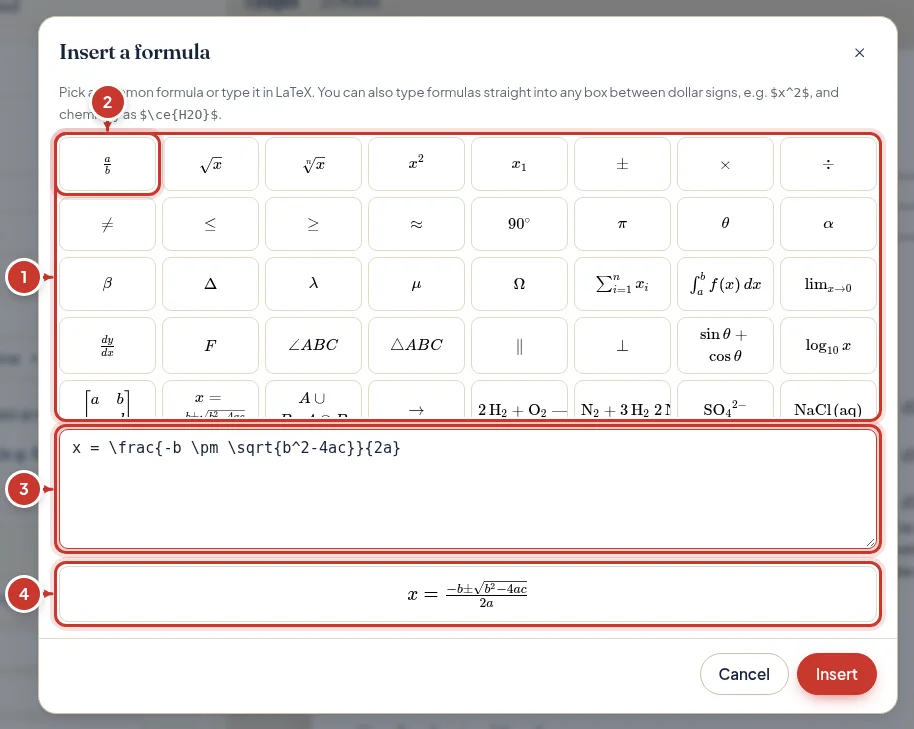
- The formula button
- Common formulas
- Type or edit the formula
- How it will print
8Marks, "attempt any" and answer lines
Marks and lines are set for a whole section, and can be changed for one question.
نمبر، "کوئی سے حل کریں" اور جواب لکھنے کے لیے لائنیں یہاں سے طے کریں۔
- "Marks each" gives every question in the section its marks; a question's own "Marks" box overrides it.
- "Attempt any" prints "Attempt any 8." and counts only that many towards the total.
- "Answer lines" puts ruled lines under each question for students to write on; Numerical problems and diagrams can have blank working space instead.
- If the total typed on the Paper tab does not match the questions, a note under the preview says so.
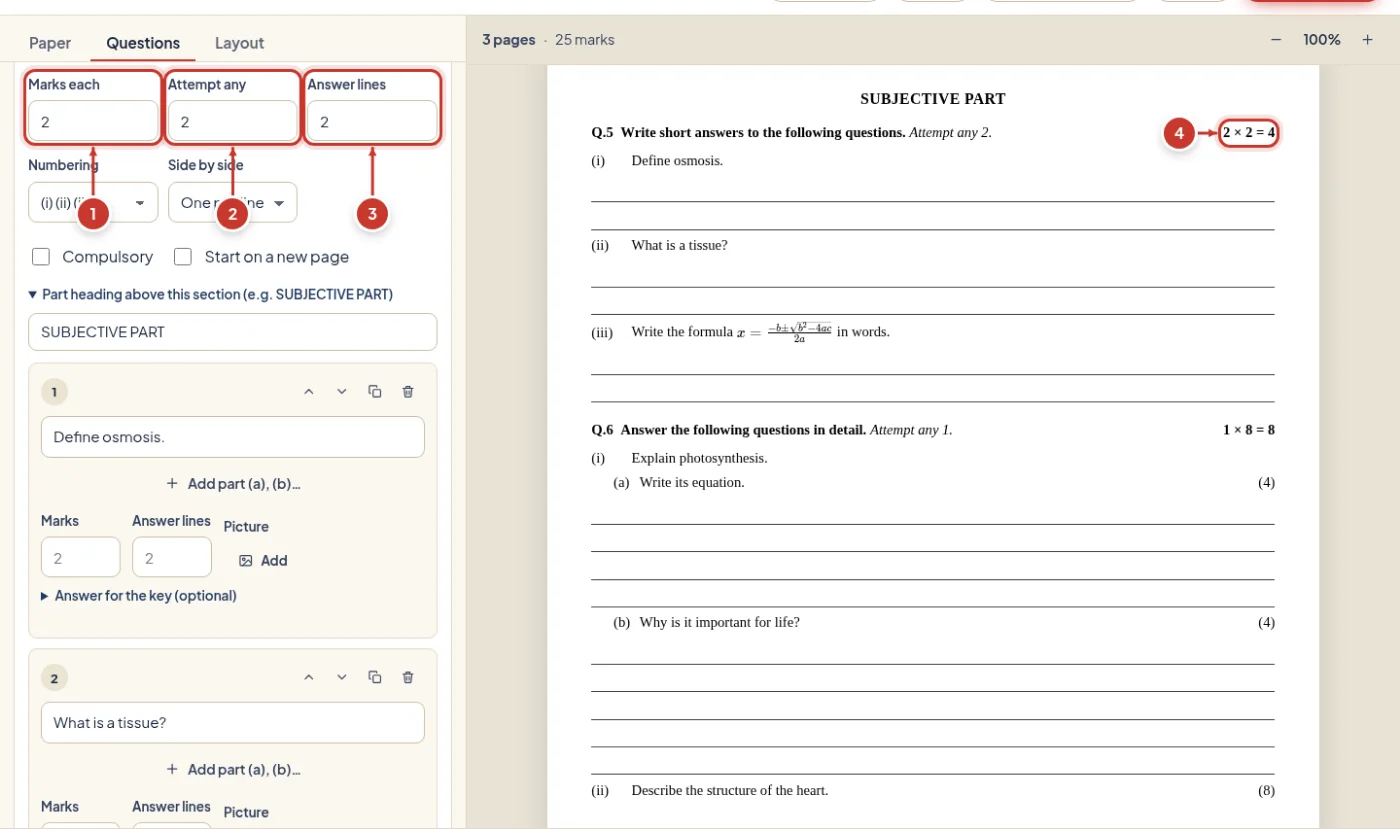
- Marks for each question
- Attempt any
- Answer lines
- The section total in the paper
9Fit more on a page
The Layout tab sets the page. The preview shows the real page breaks at once.
کاغذ کا سائز، فونٹ، فاصلہ اور ایک صفحے پر دو پرچے لے آؤٹ ٹیب سے منتخب کریں۔
- Choose A4, Letter or Legal, portrait or landscape, and the margins.
- "Spacing: Compact" and a smaller font size fit more questions on each page.
- "Copies per sheet: Two" puts two A5 copies on one A4 sheet with a cut line, for short tests.
- Turn on page numbers, a border, a watermark, the answer key or the OMR sheet.
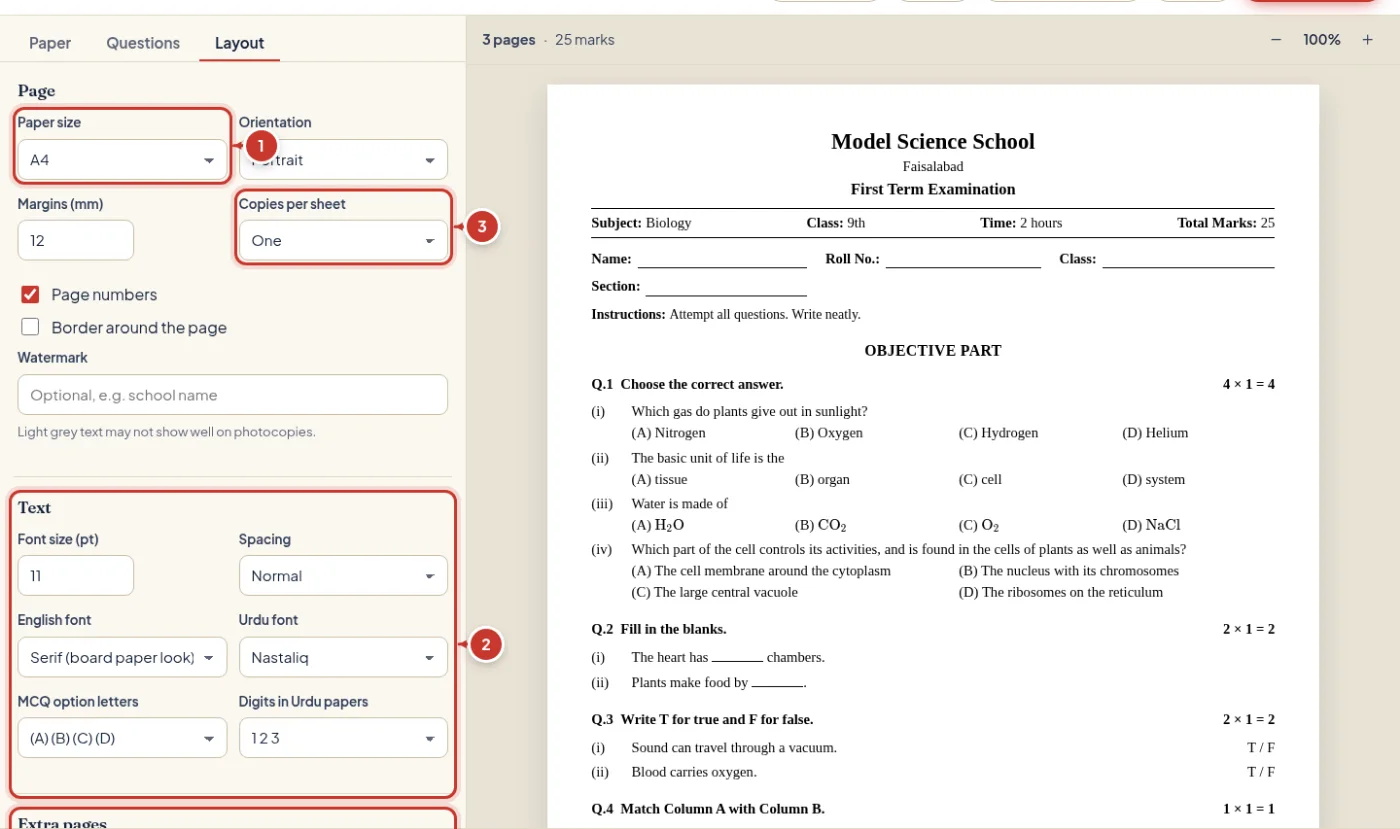
- Paper size
- Spacing and font size
- Two copies per sheet
- Extra pages
10Print, or save as PDF from the print window
Printing uses the same pages as the preview.
پرنٹ کا بٹن دبائیں۔ بہترین پی ڈی ایف کے لیے پرنٹ ونڈو میں "Save as PDF" منتخب کریں۔
- Press "Print".
- In the print window keep the scale at 100% (or "Actual size") and the margins at "None" or "Default"; the paper has its own margins.
- To keep a PDF with the sharpest text, choose "Save as PDF" as the printer.
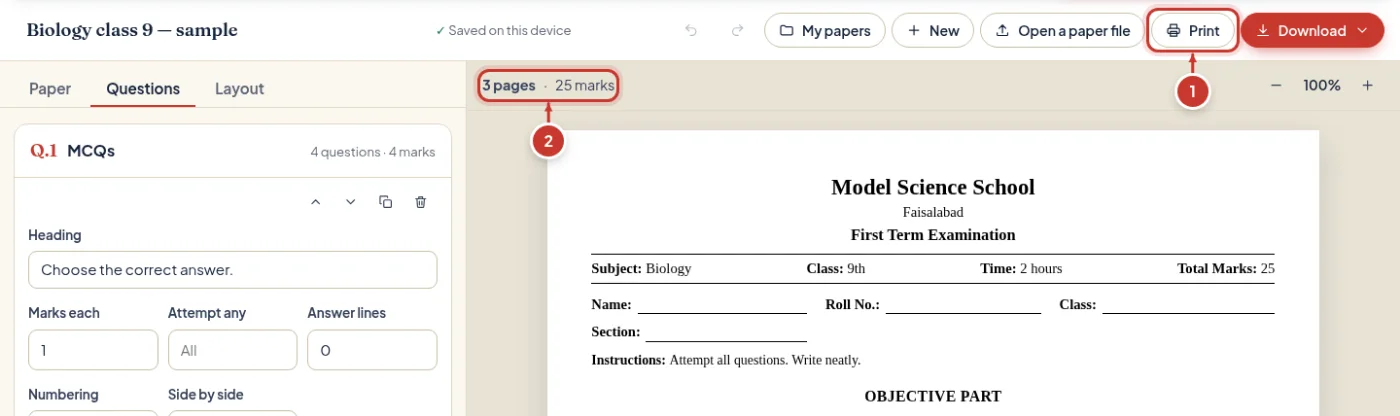
- Pages and total marks
11Download PDF, pictures, answer key or OMR sheet
Download makes the files on your device; nothing is uploaded.
پی ڈی ایف، تصویریں، جوابات کا صفحہ یا او ایم آر شیٹ ڈاؤن لوڈ کریں۔
- Press "Download" and choose PDF, PNG pictures or JPG pictures. Several pages of pictures come as one ZIP file.
- Choose "Answer key" for the key on its own, "OMR answer sheet" for a bubble sheet for the MCQs, or "OMR key" for the same sheet with the answers filled in.
- A long paper takes a few seconds per page; you can cancel.
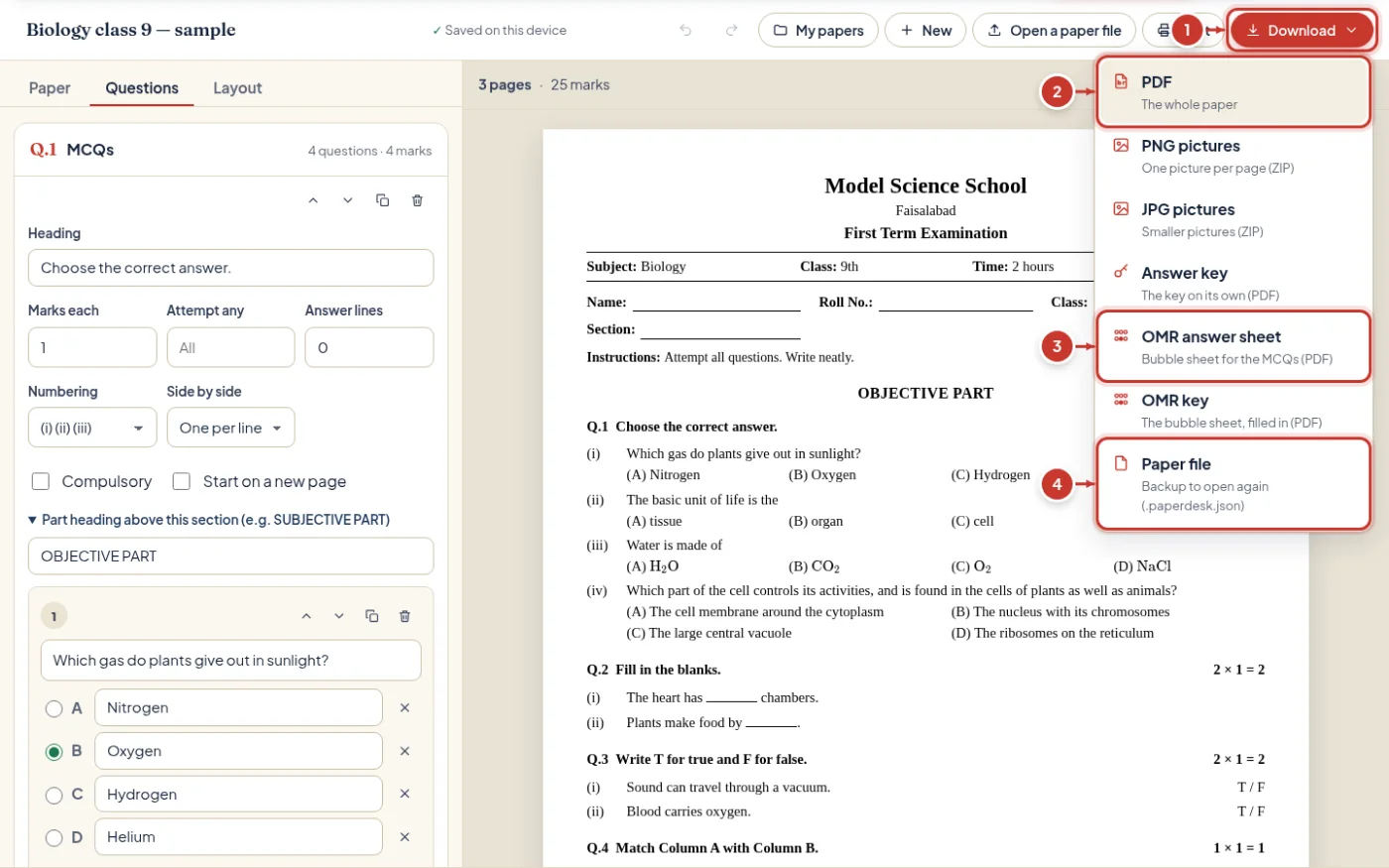
- Download
- PDF or pictures
- Answer key and OMR sheets
- A backup file of the paper
12Your papers and backups
Papers save by themselves in this browser on this device. No account, no upload.
پرچے اسی براؤزر میں محفوظ ہوتے ہیں۔ بیک اپ کے لیے "Paper file" ڈاؤن لوڈ کریں۔
- "Saved on this device" at the top shows each save. Undo and redo are beside it.
- "My papers" lists your papers: open, delete, or save a paper file.
- Download → "Paper file" saves the whole paper, pictures included, as a .paperdesk.json file. Open it on any device with "Open a paper file". Keep one as a backup: clearing browser data, or a private window, deletes saved papers.

- Saved on this device
- Undo and redo
- My papers: open, delete or save a paper file
If something looks wrong
کوئی مسئلہ ہو تو یہ عام حل دیکھیں۔
- Urdu shows as strange letters
- The text was copied from InPage without Unicode. In InPage, save or copy it as Unicode text, or type it again in the box.
- A question moved to the next page and left space
- A question is never cut in half, so it moves whole when it does not fit. Lower the font size, choose "Compact" spacing, or give it fewer answer lines.
- The printed paper is smaller than A4, or has extra blank pages
- In the print window, set scale to 100% / "Actual size" and margins to "None" or "Default", and choose the same paper size as on the Layout tab.
- "The download could not be made"
- Some older phones run out of memory for long papers. Use Print and choose "Save as PDF", or download on a computer.
- A formula shows as typed text
- The formula has a typing mistake. Open it with Σ to see it drawn as you type, and fix the part that is not drawn.
- My papers are gone
- They are kept only in the browser and device where you made them. A private window, clearing site data or another browser does not have them. Open your backup with "Open a paper file".
- "Changed in another tab"
- The same paper is open in two tabs. Choose which version to keep; the other is never overwritten silently.
Still stuck? Contact us and tell us your browser, your device and what you saw.